
We can write two types of test Cases:
1) Positive Test Cases
2) Negative Test Cases
I. Positive Test Cases
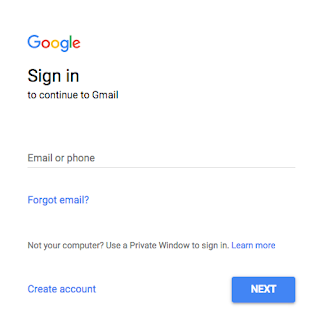
A) Test Cases for User Name/Email Box
1) Verify that User Name/Email Box must be available
2) Verify that User Name/Email Box must be clickable
3) Verify that User Name/Email Box must be Informative (Email or phone)
4) Verify that Email should not start with or contain any symbols
5) Verify that the cursor focus in text area as Gmail login page load
6) Verify that Email should contain letters and numbers.
7) Verify that Email should not be left blank.
8) Verify that Email should not be more than 40 characters.
9) Verify that if user hit the Login Button(now a days Next Button is coming) without enter User Name/Email/Phone then there must be an error message that “Enter an email or phone number”
B) Test Cases for Password
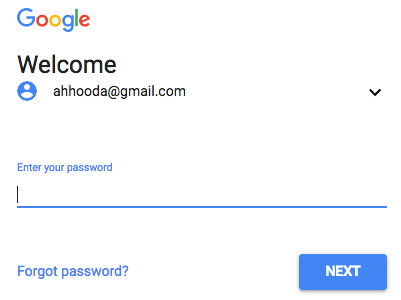
1) Verify that Password Field must be available
2) Verify that User Password Field must be clickable
3) Verify that User Password Field must be Informative.
4) Verify that Password length must be at least 8 characters.
5) Verify that Password must be masked.
6) Verify that Password length should not be more than 40 characters.
7) Verify that Password must contain combination of letter, numbers and symbols.
8) Verify that Password should not contain any space.
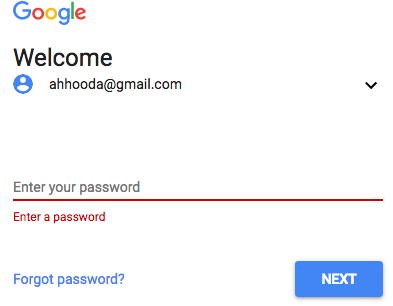
9) Verify that if user hit the Login Button(now a days Next Button is coming) without enter Password then there must be an error message that “Enter a password”.
C) Test Cases on Forgot email Link
1) Verify that Forgot email Link is available or not
2) Verify that Forgot email Link is clickable or not or not
3) Verify that as you drag your mouse to this Forgot email Link the arrow symbol must be convert in to hand symbol
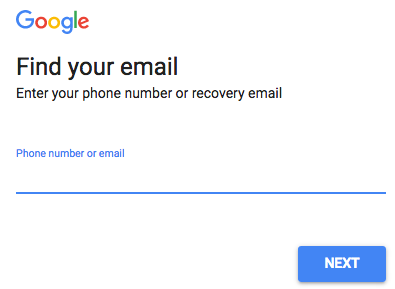
4) Verify that as you click on Forgot email Link then a new page is opening where you find “Enter your phone number or recovery email” section.
5) Verify that Phone number or email section is available on recovery Page.
6) Verify that Phone number or email section is clickable on recovery Page.
7) Verify that as we enter valid recovery mail and click on next button on recovery Page then further process must be start.
D) Test Cases on Create Account
1) Verify that Create account Link is available or not
2) Verify that Create account Link is clickable or not or not
3) Verify that as you drag your mouse to this Create account Link the arrow symbol must be convert in to hand symbol
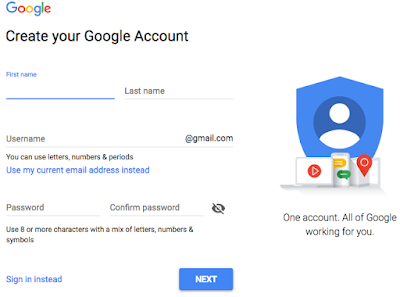
4) Verify that as you click on Forgot email Link then a new page is opening where you find “Create your Google Account” section.
5) Verify that First Name field is available on “Create your Google Account” Page.
6) Verify that First Name field is editable on “Create your Google Account” Page.
7) Verify that Last Name field is available on “Create your Google Account” Page.
8) Verify that Last Name field is editable on “Create your Google Account” Page.
9) Verify that User Name field is available on “Create your Google Account” Page.
10) Verify that User Name field is editable on “Create your Google Account” Page.
11) Verify that Password field is available on “Create your Google Account” Page.
12) Verify that Password field is editable on “Create your Google Account” Page.
13) Verify that Conform Password field is available on “Create your Google Account” Page.
14) Verify that Conform Password field is editable on “Create your Google Account” Page.
15) Verify that View Password symbol is available on “Create your Google Account” Page.
16) Verify that View Password symbol is Clickable on “Create your Google Account” Page.
17) Verify that as we click on View Password symbol then Password must be visible on “Create your Google Account” Page.
18) Verify that “Sign in instead” link is available on “Create your Google Account” Page.
19) Verify that “Sign in instead” link is editable on “Create your Google Account” Page.
20) Verify that as you drag your mouse to this “Sign in instead” link the arrow symbol must be convert in to hand
symbol
21) Verify that Next Button is available on “Create your Google Account” Page.
22) Verify that Next Button is Clickable on “Create your Google Account” Page.
23) Verify that as you drag your mouse to this Next Button link the arrow symbol must be convert in to hand symbol.
24) Verify that “Are you sure you entered your name correctly?” error message is displaying on screen when you enter the user name that is already available on Gmail.
E) Few Points that we must Test:
1) Verify that all Hyperlinks given on the page is active or not
2) Verify that how the Login screen show on mobile or tablet screen?
3) Verify that can we use Enter key as Sign In(Next) button action?
4) Verify that look and feel must be good.
- Negative Test Cases
1) Verify that with valid username and invalid password are we able to login
2) Verify that with Invalid username and valid password are we able to login
3) Verify that as we hit the Login Button without entering User name.
4) Verify that as we hit the Login Button without entering Password.
5) Verify that as we hit the Login Button without entering User name and Password.