
We can write two types of test Cases:
1) Positive Test Cases
2) Negative Test Cases
I. Positive Test Cases
A) Test Cases on Create Account
1) Verify that Create account Link is available or not
2) Verify that Create account Link is clickable or not or not
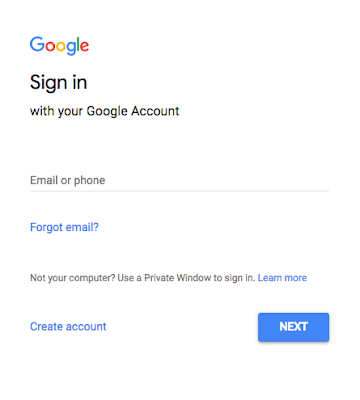
3) Verify that as you drag your mouse to this Create account Link the arrow symbol must be convert in to hand symbol
4) Verify that as you click on Create account Link then a new page is opening where you find “Create your Google Account” like this:
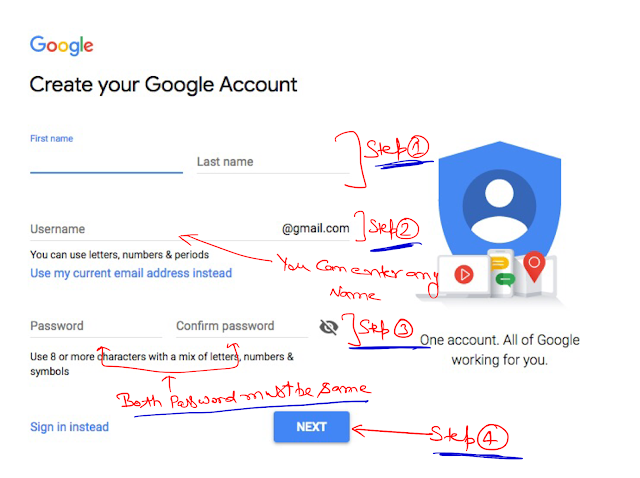
5) Verify that First Name field is available on “Create your Google Account” Page.
6) Verify that First Name field is editable on “Create your Google Account” Page.
7) Verify that Last Name field is available on “Create your Google Account” Page.
8) Verify that Last Name field is editable on “Create your Google Account” Page.
9) Verify that User Name field is available on “Create your Google Account” Page.
10) Verify that User Name field is editable on “Create your Google Account” Page.
11) Verify that Password field is available on “Create your Google Account” Page.
12) Verify that Password field is editable on “Create your Google Account” Page.
13) Verify that Conform Password field is available on “Create your Google Account” Page.
14) Verify that Conform Password field is editable on “Create your Google Account” Page.
15) Verify that View Password symbol is available on “Create your Google Account” Page.
16) Verify that View Password symbol is Clickable on “Create your Google Account” Page.
17) Verify that as we click on View Password symbol then Password must be visible on “Create your Google Account” Page.
18) Verify that “Sign in instead” link is available on “Create your Google Account” Page.
19) Verify that “Sign in instead” link is editable on “Create your Google Account” Page.
20) Verify that as you drag your mouse to this “Sign in instead” link the arrow symbol must be convert in to hand symbol
21) Verify that Next Button is available on “Create your Google Account” Page.
22) Verify that Next Button is Clickable on “Create your Google Account” Page.
23) Verify that as you drag your mouse to this Next Button link the arrow symbol must be convert in to hand symbol.
24) Verify that “Are you sure you entered your name correctly?” error message is displaying on screen when you enter the user name that is already available on Gmail
25) Verify that as we click on Next button when all fields have correct value then the following screen must be available:
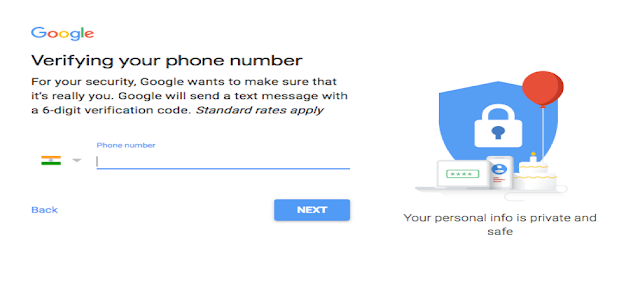
26) Verify that select the country option is available or not
27) Verify that user can select his/her country from drop down.
28) Verify that phone number text field is available and clickable or not
39) Verify that the text field must contain only numbers.
30) Verify that are we getting any error as we try to enter anything else number.
31) Verify that are we getting any error message as we click on next button without entering any phone number.
32) Verify that ‘Back’ hyperlink is working fine.
33) Verify that as we click on Next button when all fields have correct value then the following screen must be available:
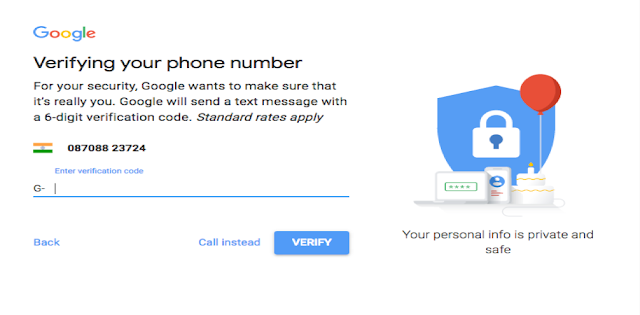
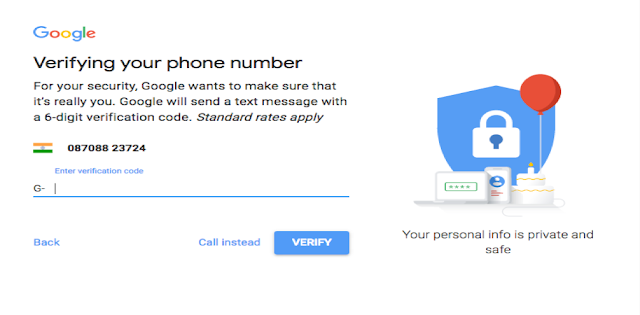
35) Verify that your mobile number must be visible on this screen.
36) Verify that enter verification code text field is available and clickable
37) Verify that are we getting any error message as we click on VERIFY button without entering any verification code or with wrong verification code.
38) Verify that Back hyperlink is working fine or not.
39) Verify that “Call instead” function is working fine or not.
40) Verify that as we click on “VERIFY” button when all fields have correct value then the following screen must be available:
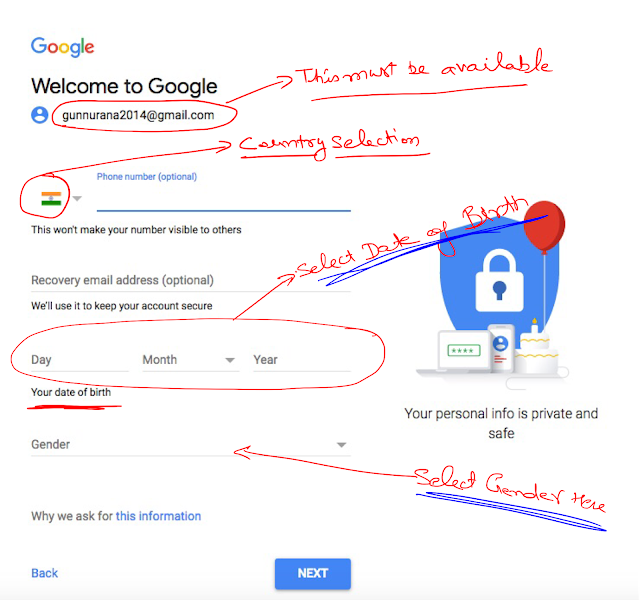
41) Verify that your mail Id must be visible on this screen.
42) Verify that phone no field is available and clickable
43) Verify that are we getting any error message as we click on “Next” button without entering any verification code or with wrong verification code.
44) Verify that Day, Month and year Selection is available and clickable for date of birth
45) Verify that Month Selection dropdown working fine or not.
46) Verify that can we select multiple value from Month dropdown
47) Verify that Gender Selection dropdown is available and clickable
48) Verify that can we select the multiple value from gender selection dropdown
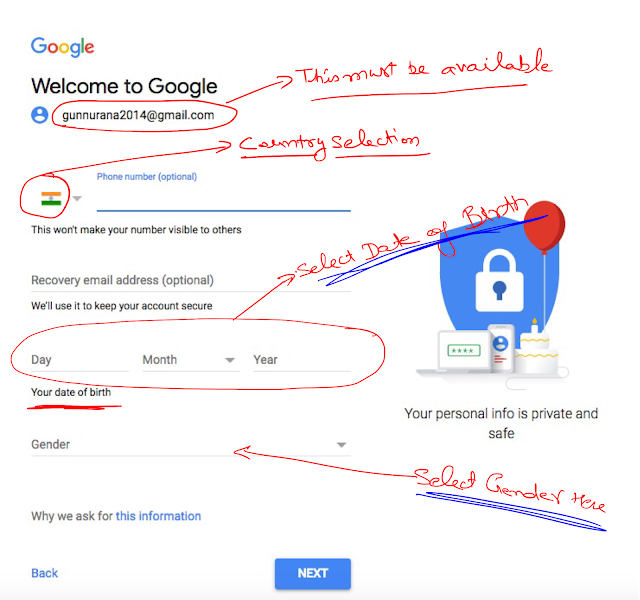
49) Verify that Back hyperlink is clickable and working fine.
50) Verify that as we click on the Back hyperlink following screen must come:
51) Verify that Next button is available and clickable.
52) Verify that as we click on “Next” button when all fields have correct value then the following screen must be available:
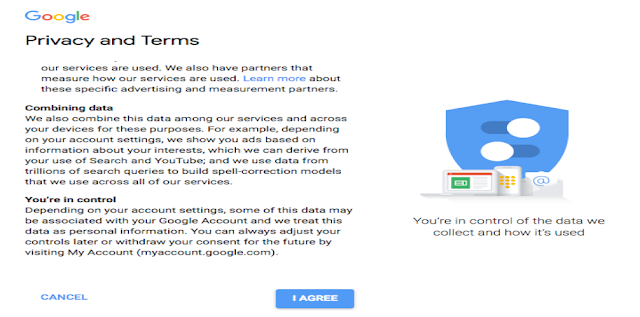
53) Verify that “I Agree” button is available and clickable.
54) Verify that Cancel hyperlink is available and clickable.
55) VVerify that as we click on Cancel hyperlink then following screen must be available:
56) Verify that we click on “I Agree” button following screen must be available:
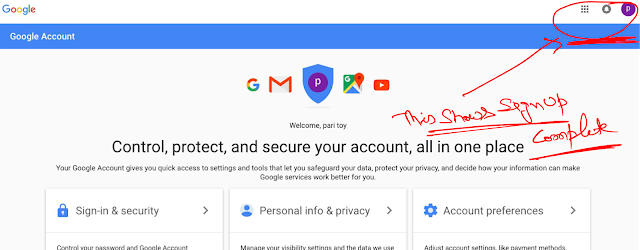
57) This screen shows that mail sign up has been complete.
A) Few Points that we must Test:
1) Verify that all Hyperlinks given on the page is active or not
2) Verify that how the Login screen show on mobile or tablet screen?
3) Verify that can we use Enter key as (Next) button action?
4) Verify that look and feel must be good.
- Negative Test Cases
1) Verify that with different password in conform password filed is working fine.
2) Verify that as we hit the next Button without entering User name, then check is it working
3) Verify that as we hit the next Button without entering date of birth, then check is it working
4) Verify that as we hit the Verify Button without entering verification code, then check is it working